
Step 1: Open the Order Form
Navigate to the Create New Order page from the dashboard.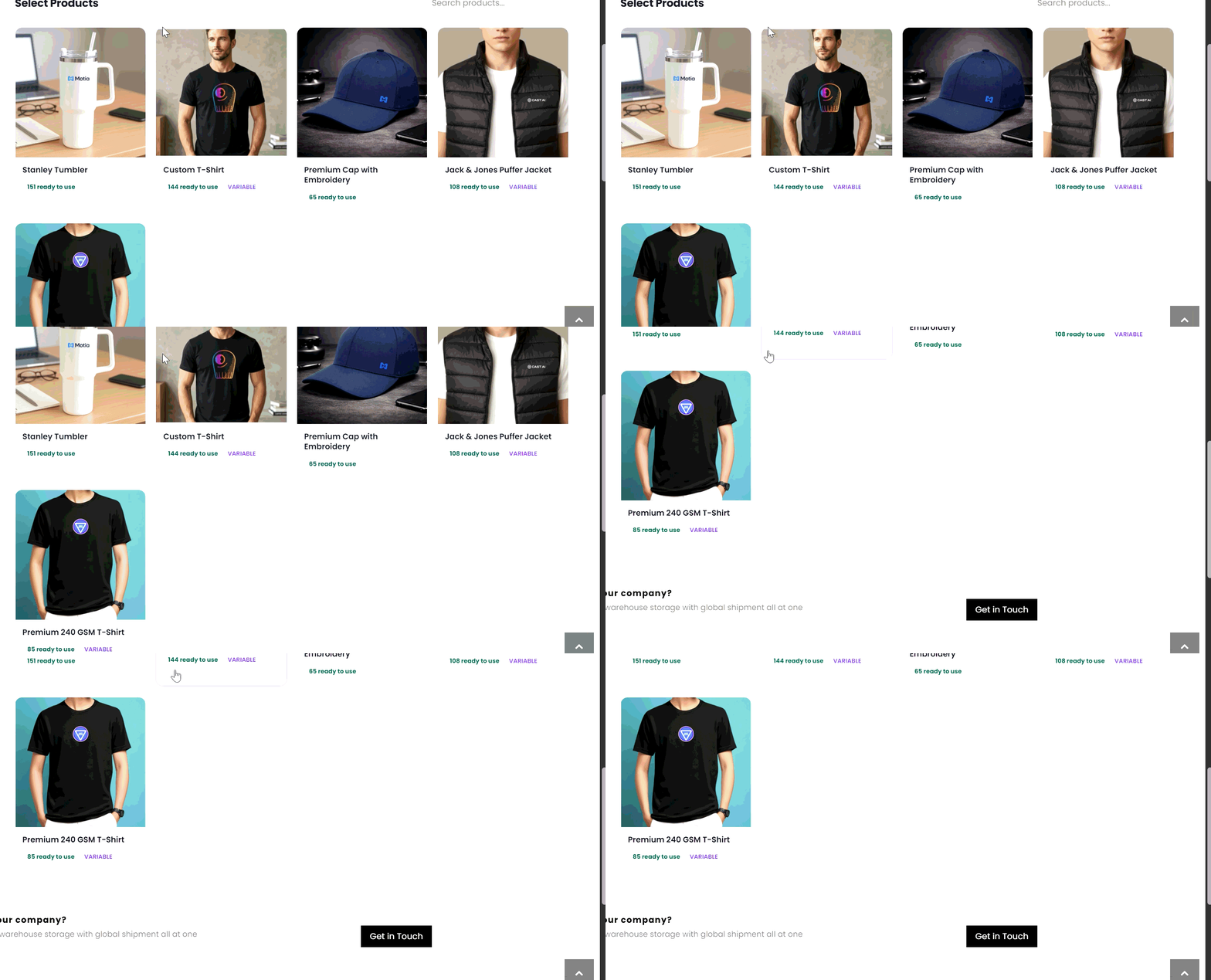
Step 2: Select a Product
- Click the Select Product dropdown.
- Choose a product from the list.
- Confirm the selected product appears in the dropdown.
The selected product will be reflected in the Order Summary panel.
Step 3: Enter Quantity
Enter the number of units in the Quantity field.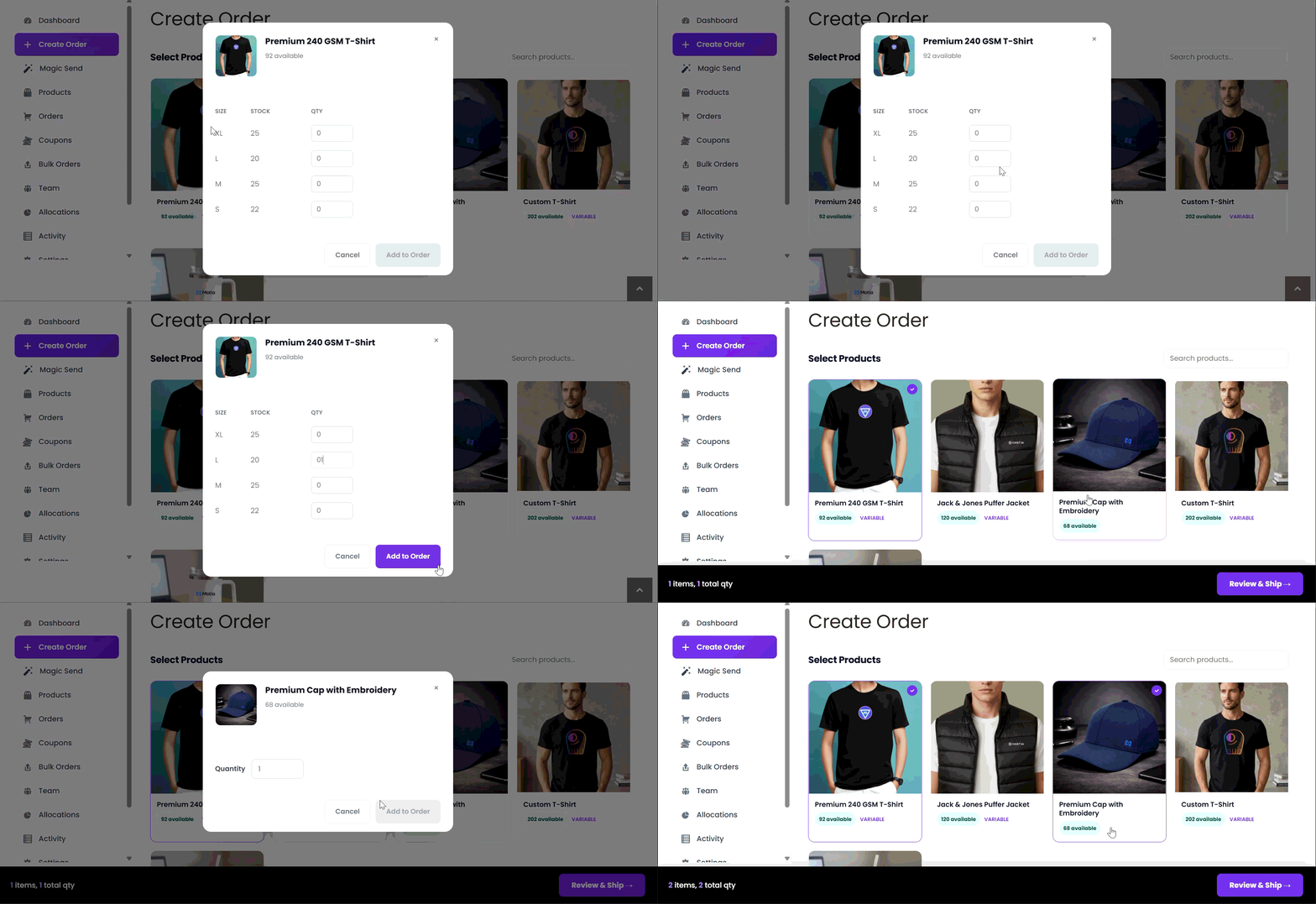
Step 4: Enter Recipient Information
Fill in the required fields:- Recipient Name
- Phone
Step 5: Enter Shipping Address
Provide the complete delivery address:- Address
- Postal Code
- City
- State
Verify the address details carefully to avoid delivery delays.
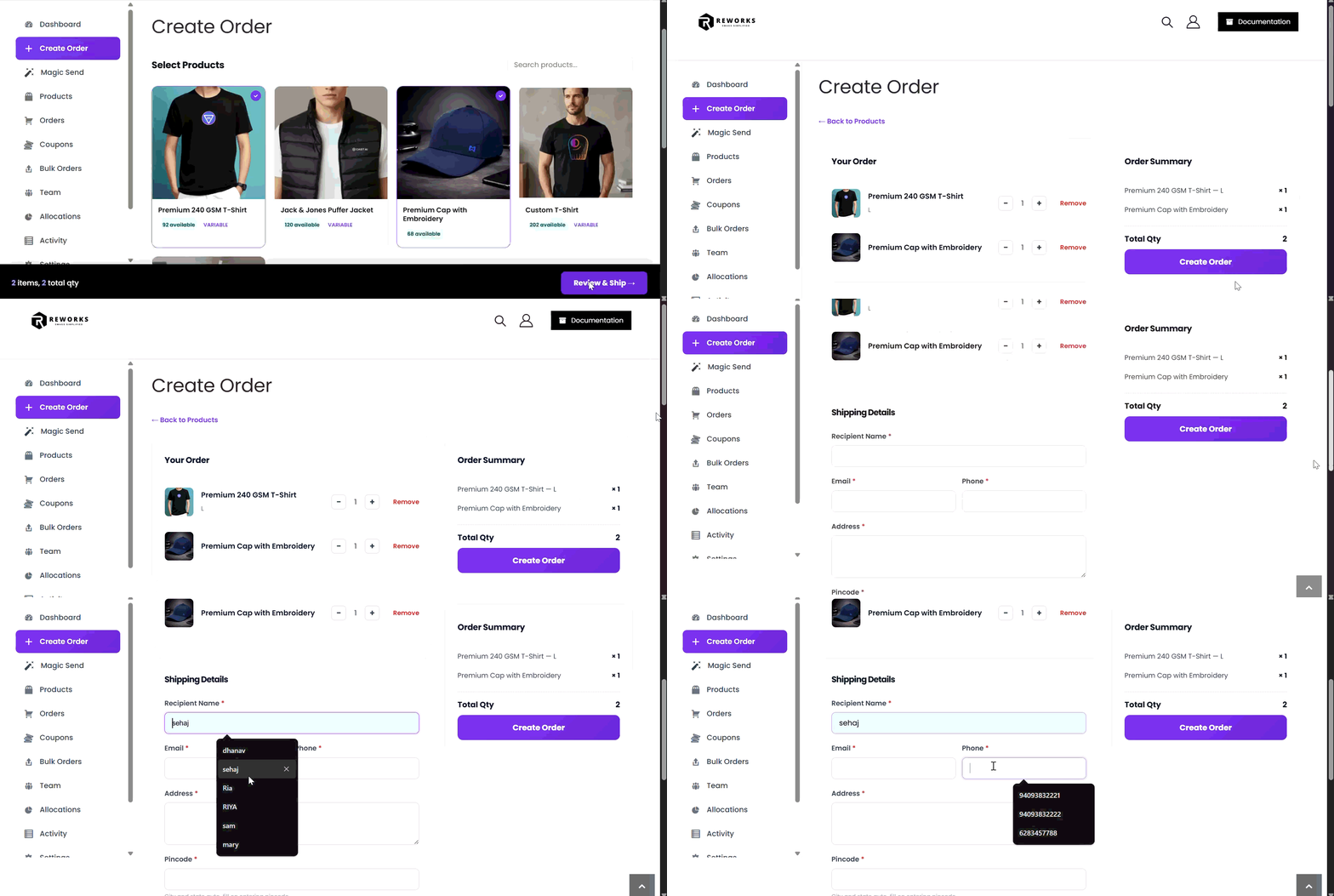
Step 6: Review Order Summary
Check the Order Summary panel to confirm:- Selected product
- Quantity
- Recipient details
Step 7: Create the Order
Click Create Order to submit.- The system validates all required fields.
- A confirmation message will appear upon successful creation.
- If validation fails, correct the highlighted fields and resubmit.
Once the order is created successfully, it will be available in the Orders list.