.png?fit=max&auto=format&n=UmrGSXYSuzVQw1Iv&q=85&s=4212ef1940e11cfe7f016e7f0285e8e1)

Step 1: Navigate to Orders
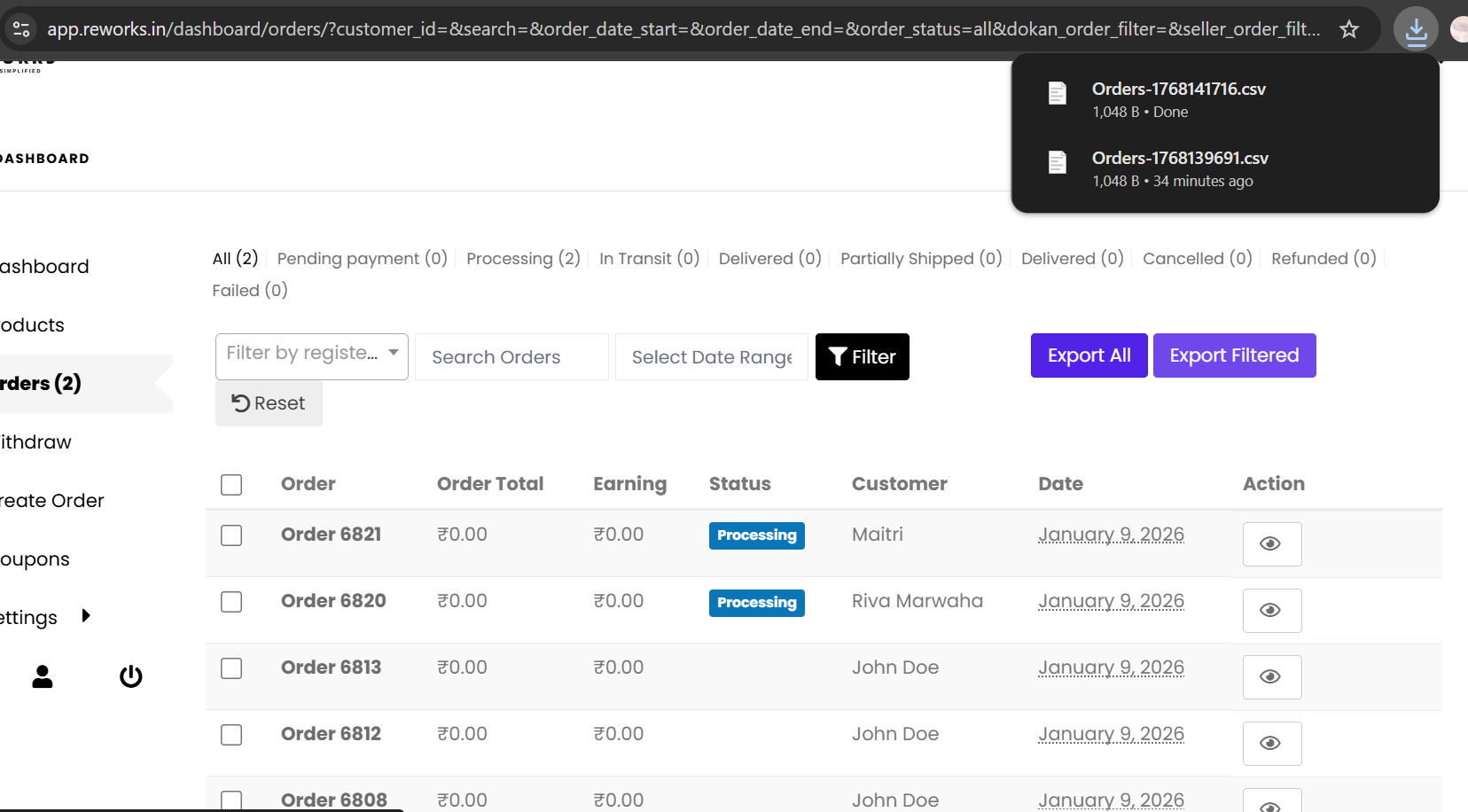
From the left navigation menu, select Orders.The Orders Dashboard displays all orders associated with you by default.
Step 2: Apply Filters (Optional)
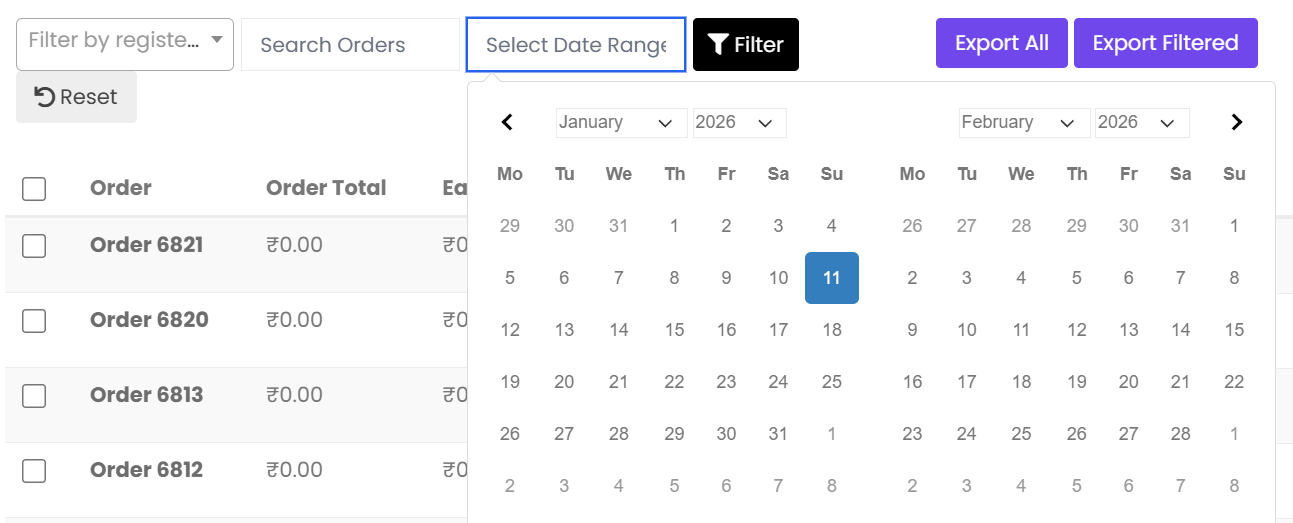
- Search Orders – Enter an order ID or customer name
- Date Range – Select a specific time period Click Filter to apply the selected criteria
Step 3: Review Filtered Results
Verify that the orders displayed in the table match the data you want to export.Only the visible orders will be included when using the filtered export option.
Step 4: Choose Export Type
Select one of the following options:- Export All – Exports the complete order dataset
- Export Filtered – Exports only the orders currently visible in the table
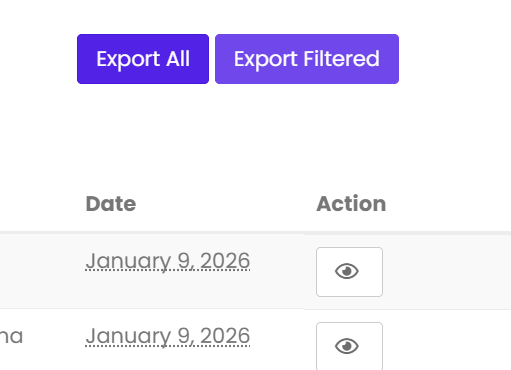
Step 5: File will be exported
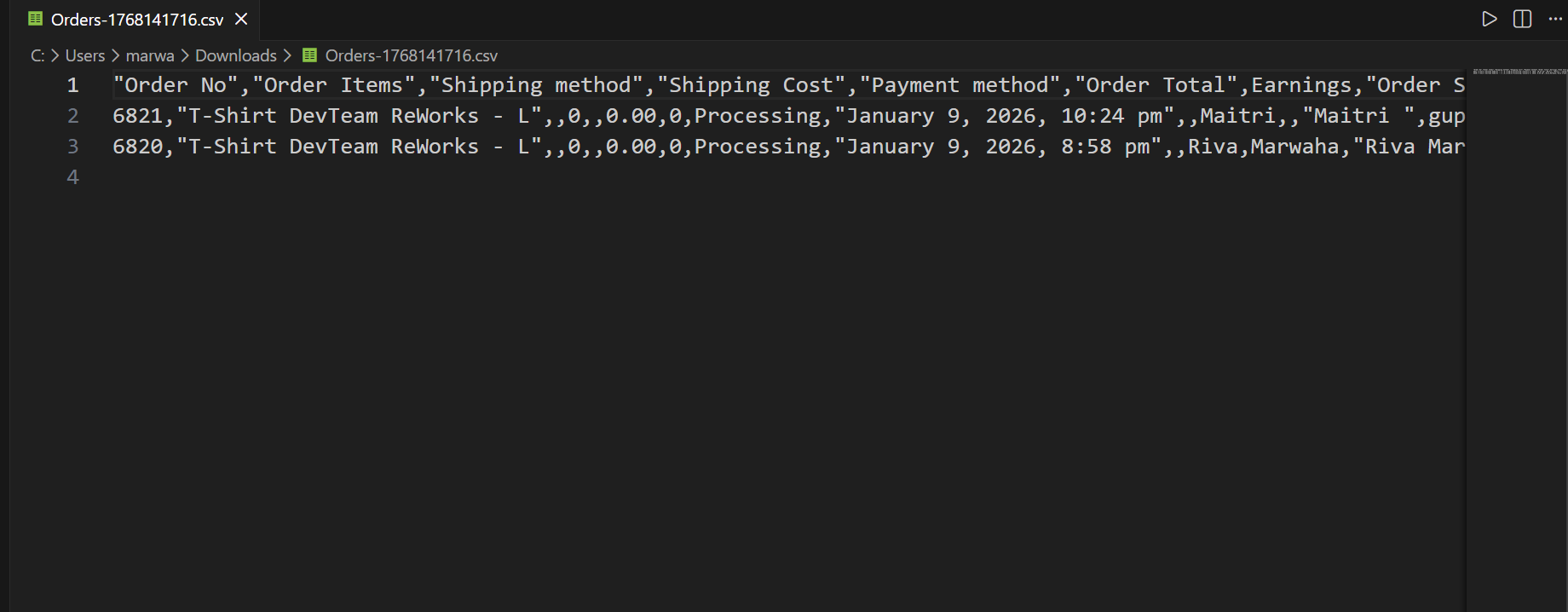
The exported file is automatically downloaded in CSV format, making it compatible with spreadsheet tools and reporting systems.