> ## Documentation Index
> Fetch the complete documentation index at: https://docs.reworks.in/llms.txt
> Use this file to discover all available pages before exploring further.
# Create a Single Order
> Step-by-step guide to creating a single order.
## Step 1: Open the Order Form
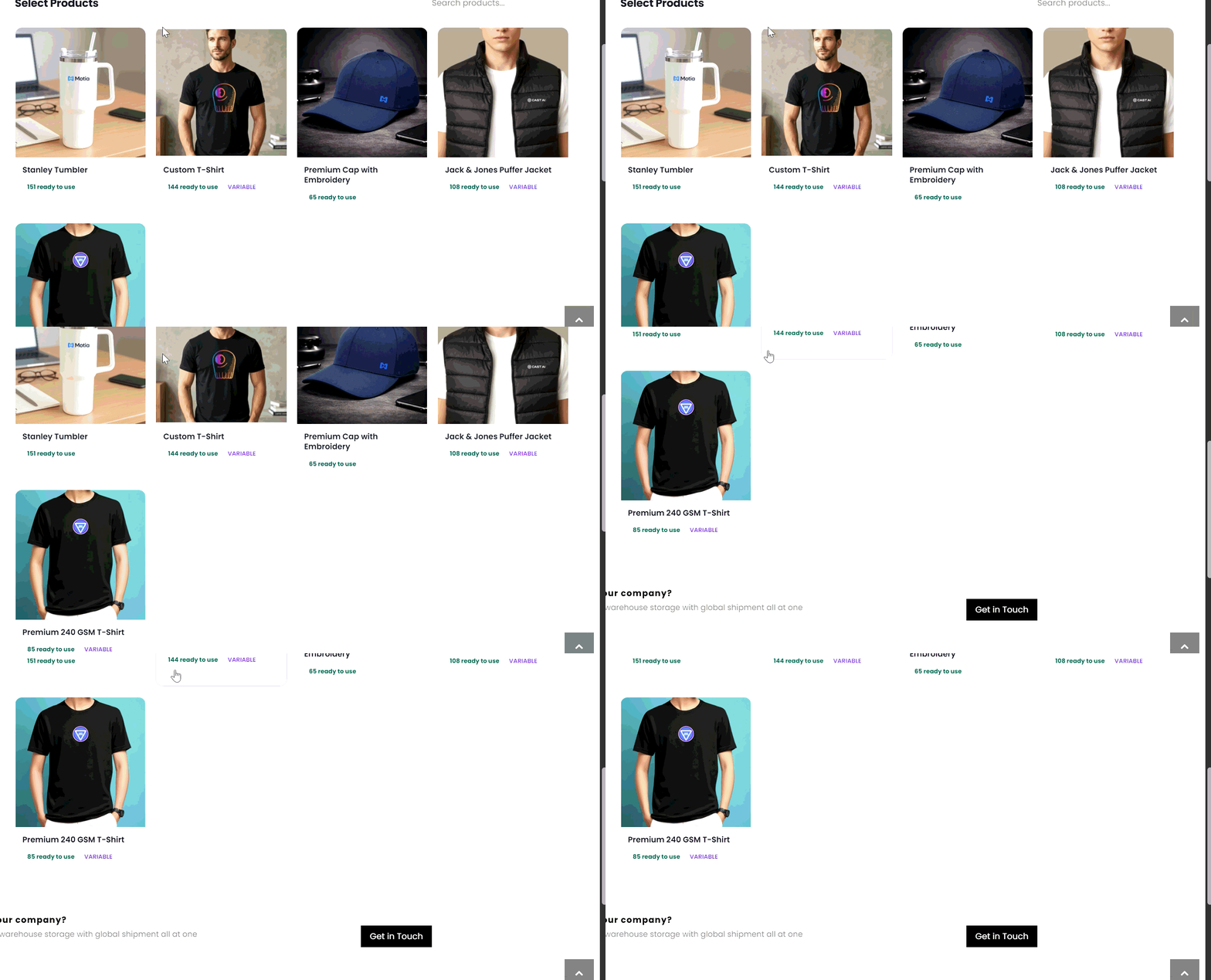
Navigate to the **Create New Order** page from the dashboard.
 ***
## Step 2: Select a Product
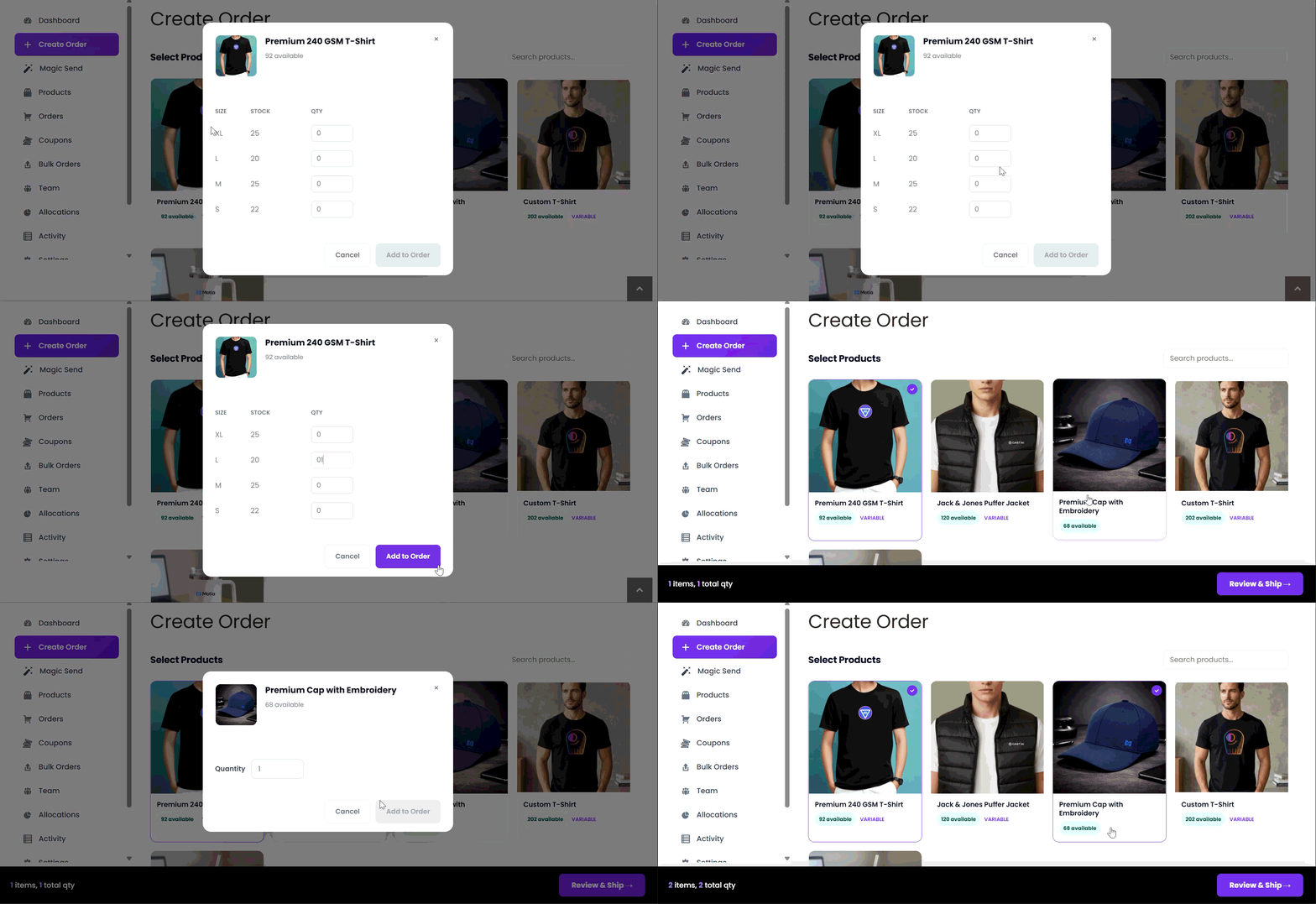
1. Click the **Select Product** dropdown.
2. Choose a product from the list.
3. Confirm the selected product appears in the dropdown.
The selected product will be reflected in the **Order Summary** panel.
***
## Step 3: Enter Quantity
Enter the number of units in the **Quantity** field.
***
***
## Step 2: Select a Product
1. Click the **Select Product** dropdown.
2. Choose a product from the list.
3. Confirm the selected product appears in the dropdown.
The selected product will be reflected in the **Order Summary** panel.
***
## Step 3: Enter Quantity
Enter the number of units in the **Quantity** field.
***
 ## Step 4: Enter Recipient Information
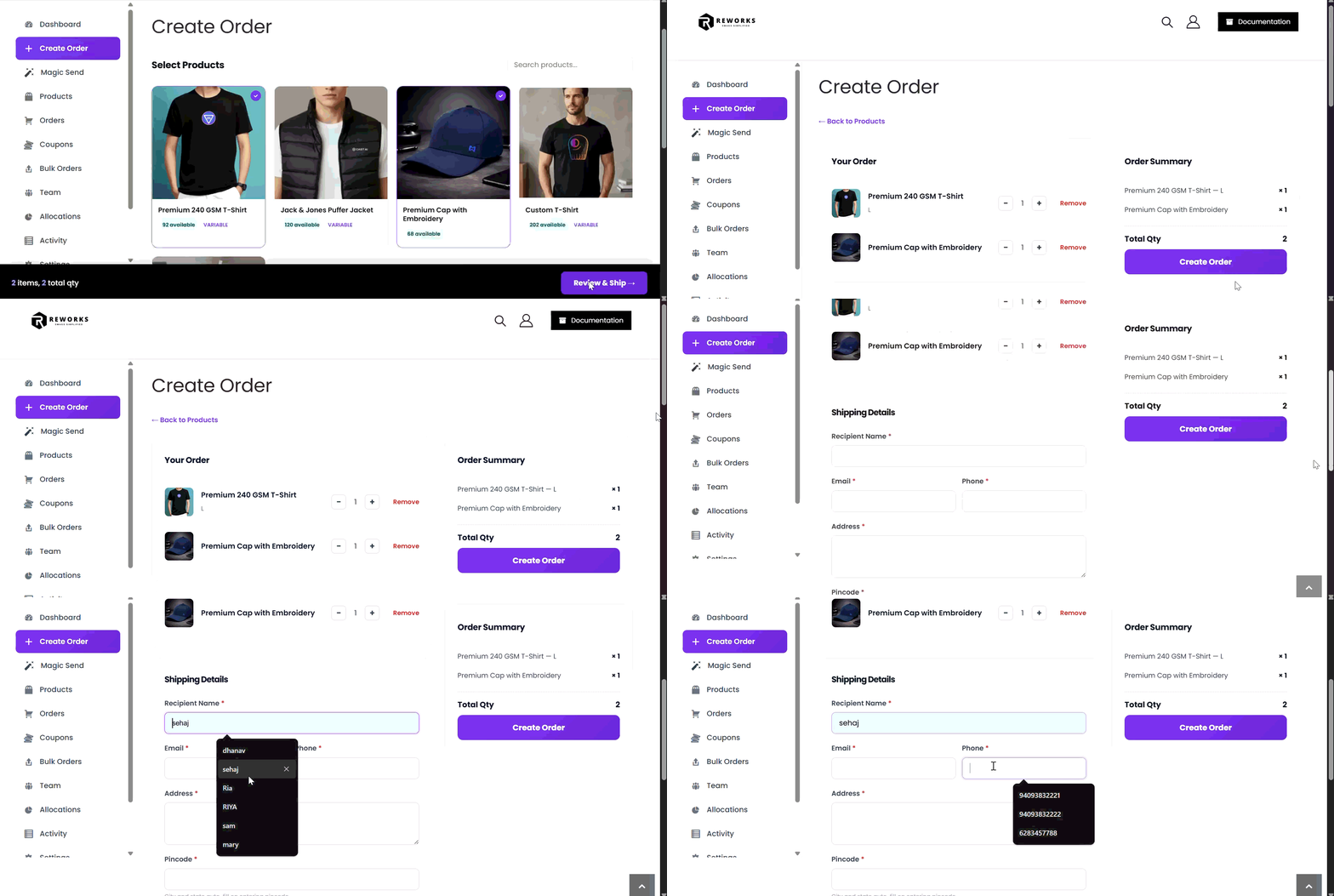
Fill in the required fields:
* **Recipient Name**
* **Email**
* **Phone**
Ensure the email format is valid and the phone number includes the correct country code if required.
***
## Step 5: Enter Shipping Address
Provide the complete delivery address:
* **Address**
* **Postal Code**
* **City**
* **State**
Verify the address details carefully to avoid delivery delays.
## Step 4: Enter Recipient Information
Fill in the required fields:
* **Recipient Name**
* **Email**
* **Phone**
Ensure the email format is valid and the phone number includes the correct country code if required.
***
## Step 5: Enter Shipping Address
Provide the complete delivery address:
* **Address**
* **Postal Code**
* **City**
* **State**
Verify the address details carefully to avoid delivery delays.
 ## Step 6: Review Order Summary
Check the **Order Summary** panel to confirm:
* Selected product
* Quantity
* Recipient details
***
## Step 7: Create the Order
Click **Create Order** to submit.
* The system validates all required fields.
* A confirmation message will appear upon successful creation.
* If validation fails, correct the highlighted fields and resubmit.
Once the order is created successfully, it will be available in the Orders list.
## Step 6: Review Order Summary
Check the **Order Summary** panel to confirm:
* Selected product
* Quantity
* Recipient details
***
## Step 7: Create the Order
Click **Create Order** to submit.
* The system validates all required fields.
* A confirmation message will appear upon successful creation.
* If validation fails, correct the highlighted fields and resubmit.
Once the order is created successfully, it will be available in the Orders list.